
If you are trying to install BeeTV on an iPhone or iPad, the first thing to understand is that Android APK files and iOS applications use different formats. An Android APK cannot be installed directly on an iPhone or iPad.
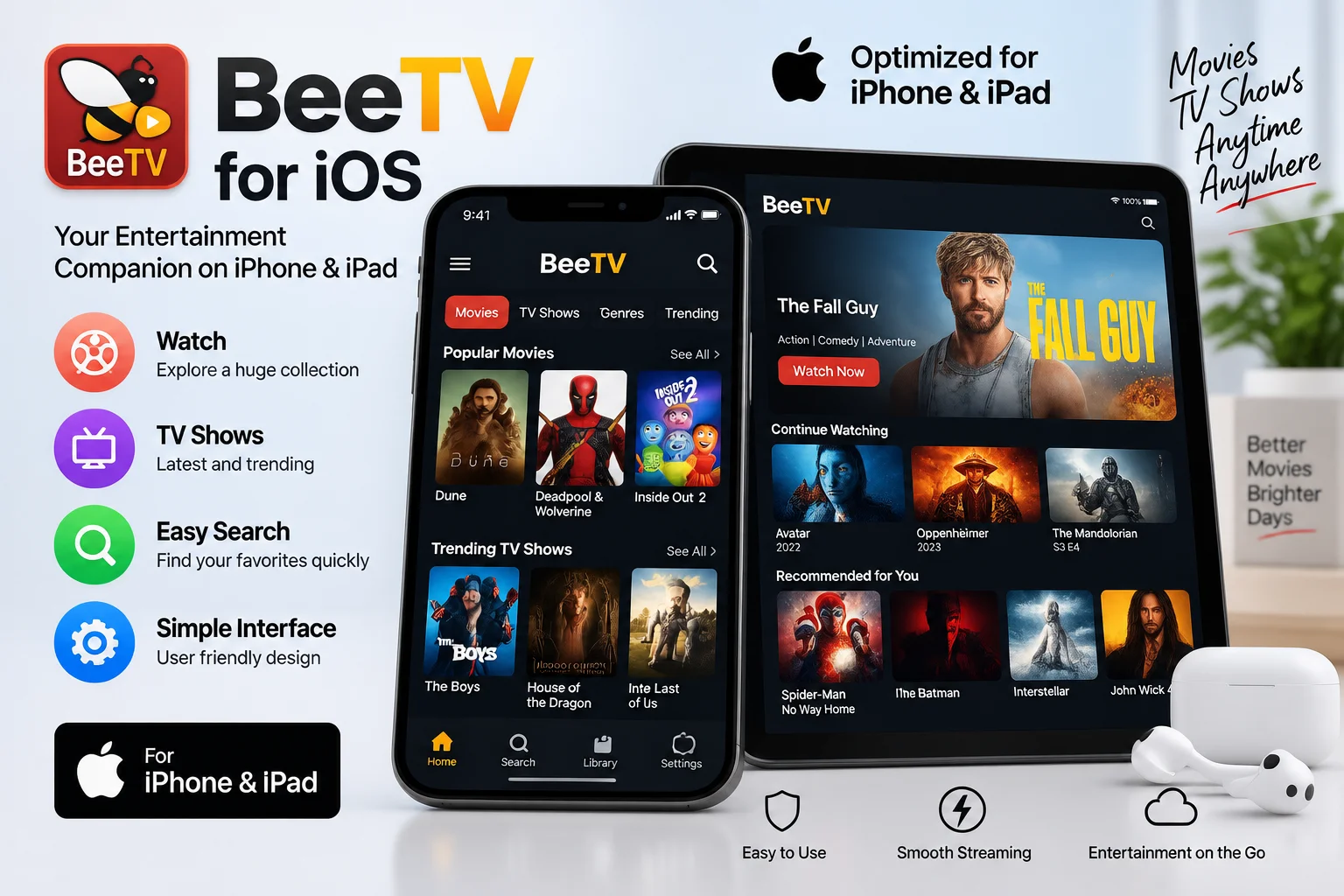
There is also some confusion around the name BeeTV because several unrelated apps and services use similar names. For example, Apple currently lists an app called BeeTV from Kar-Tel LLP in some App Store regions, while BEEHIVE BEEtv is a separate television service from Beehive Broadband.
Therefore, before installing anything, we should identify which BeeTV application we mean and use a legitimate installation source whenever one is available.
Table of Contents
Can You Install BeeTV on iPhone and iPad?
Yes, but the installation method depends on the specific BeeTV app you are looking for.
If you mean the BeeTV app listed by Kar-Tel LLP, it is available through Apple’s App Store in supported regions. The current App Store listing says it works on iPhone and iPad and requires iOS 14.0 or later.
If you mean an Android BeeTV APK commonly distributed on APK websites, that APK cannot simply be installed on an iPhone or iPad. iOS does not natively run Android APK packages.
This distinction is important because searching for “BeeTV APK for iPhone” can lead to websites offering files or installation profiles that are not necessarily official.
How to Install BeeTV on iPhone from the App Store
If the BeeTV application you want is officially available in your App Store region, the safest approach is to install it directly through Apple.
Step 1: Open the App Store
Unlock your iPhone and open the App Store.
Tap the Search tab and enter:
BeeTV
Check the application name, developer, description, and compatibility before installing it.
For example, the current App Store listing for BeeTV identifies Kar-Tel LLP as the provider and states that the application requires iOS 14.0 or later.
Step 2: Check the Developer
Do not install an application solely because its name contains “BeeTV.”
Several applications can have similar names. The developer information is therefore an important way to distinguish between them.
The App Store currently has a separate BEEHIVE BEEtv application developed by TiVo Platform Technologies LLC. It is designed for Beehive Broadband customers and requires iOS 15.6 or later.
Step 3: Tap Get
Once you have confirmed that the application is the one you need, tap Get.
Depending on your iPhone’s security settings, Apple may ask you to confirm the download with:
- Face ID
- Touch ID
- Your Apple Account password
- The device passcode
Allow the installation to finish.
Step 4: Open BeeTV
After installation, tap Open or locate the BeeTV icon on your Home Screen.
If the application requires an account or subscription, follow the sign-in or account setup instructions provided by the application.
How to Install BeeTV on iPad
The basic installation process on an iPad is almost identical to the iPhone method.
Open the App Store, search for the correct BeeTV application, verify its developer and compatibility information, and then select Get.
The current App Store listing for the Kar-Tel BeeTV application states that it supports iPad and requires iPadOS 14.0 or later.
After installation:
- Open BeeTV.
- Complete any required account setup.
- Sign in if necessary.
- Review the application’s available settings.
- Select content available through the service.
The exact features and content depend on the particular BeeTV application and service.
Can You Install BeeTV APK on iPhone?
No. A normal BeeTV APK cannot be installed directly on an iPhone or iPad.
- APK is an Android application package format. Apple’s iOS platform uses a different application system.
- This means you should not download an Android BeeTV APK and expect Safari to install it on your iPhone.
- If a website tells you that you can simply download a
.apkfile and tap it to install BeeTV on iOS, that instruction is technically incorrect.
Some third-party websites instead advertise IPA files, configuration profiles, enterprise certificates, or sideloading methods. These are different from installing an APK through the App Store and should be treated carefully.
What Is the Difference Between APK and IPA?
Understanding the difference between APK and IPA makes the iOS installation process easier.
- APK is primarily associated with Android applications.
- IPA is an application archive used for iOS and iPadOS applications.
Therefore:
| File Type | Platform |
|---|---|
| APK | Android |
| IPA | iPhone and iPad |
| App Store application | iPhone and iPad through Apple’s distribution system |
An Android BeeTV APK is therefore not a replacement for an iOS BeeTV application.
What If BeeTV Is Not Available in Your App Store?
App availability can vary by country or region.
For example, the BeeTV application from Kar-Tel LLP is currently visible in certain Apple App Store regions, including Kazakhstan.
If you search for BeeTV and cannot find the same application, several possibilities exist:
- The application may not be distributed in your country.
- The application may have been removed or renamed.
- You may be searching for a different BeeTV service.
- Your iOS version may not meet the application’s requirements.
- The application may be available only to customers of a particular service.
Instead of installing an unknown configuration profile, first verify the application’s official developer and availability.
How to Check Your iPhone iOS Version
Before troubleshooting installation, check which iOS version your iPhone is running.
Go to:
Settings → General → About
Look for iOS Version.
You can also check for available updates under:
Settings → General → Software Update
If the BeeTV application requires a newer version of iOS than your device supports, the App Store may prevent installation.
How to Check Your iPad OS Version
On an iPad, open:
Settings → General → About
Find the Software Version or iPadOS Version information.
If the application requires a newer version, update your iPadOS when an official update is available and your device supports it.
The App Store currently lists the Kar-Tel BeeTV application as requiring iPadOS 14.0 or later.
BeeTV Installation Problems on iPhone
Sometimes an application appears in search results but cannot be installed. Several common reasons can cause this.
BeeTV Is Not Showing in Search
- If BeeTV does not appear, check the spelling and try searching for the developer name as well.
- Remember that multiple applications can use similar names.
- You should also verify whether the application is available in your current App Store region.
The Get Button Is Missing
If you cannot download an application, check its compatibility information.
- The current Kar-Tel BeeTV listing requires iOS 14.0 or later.
- An older iPhone that cannot run the required operating system may not be compatible.
The Installation Is Stuck
If an App Store download appears stuck:
- Check your internet connection.
- Make sure your iPhone has enough storage.
- Restart the App Store.
- Restart the iPhone.
- Check Apple’s account and payment requirements.
- Try the download again.
Avoid downloading an unofficial installer simply because the App Store download is temporarily unavailable.
Is It Safe to Install BeeTV on iPhone?
Safety depends on which BeeTV application you are installing and where you obtain it.
Applications downloaded through the official Apple App Store go through Apple’s app distribution and review processes. However, users should still check the developer, privacy information, permissions, and reviews before installation.
The current Kar-Tel BeeTV App Store listing provides information about data handling, including contact information, identifiers, usage data, and diagnostics. Third-party websites require additional caution.
Be particularly careful with websites asking you to:
- Install unknown configuration profiles
- Enter your Apple Account credentials
- Disable important security settings
- Install unknown enterprise certificates
- Download multiple files before installation
- Provide payment information to an unfamiliar website
An installation method being advertised as “no jailbreak” does not automatically make the source trustworthy.
Should You Use Third-Party BeeTV iOS Installers?
We recommend checking whether an official App Store version exists before considering alternative installation methods.
Some websites advertise BeeTV iOS versions through third-party sideloading tools such as AltStore or Sideloadly. However, the availability and authenticity of a particular IPA file depend on its source.
A sideloading tool can install an application package, but it does not automatically prove that the application itself is legitimate or safe.
For this reason, users should avoid downloading an IPA from an unknown website simply because the page claims it is an “official BeeTV iOS version.”
Can BeeTV Be Installed Without Jailbreaking an iPhone?
If an official App Store version is available for your device and region, no jailbreak is required.
The standard App Store installation process works without modifying iOS.
Third-party sideloading is a separate process and may have additional limitations, certificate requirements, or account-related restrictions. Those methods should only be considered when the application developer or a trustworthy source provides a legitimate iOS package.
Can BeeTV Work on Older iPhones?
Compatibility depends on the particular BeeTV application.
For the current Kar-Tel BeeTV listing, Apple states that iOS 14.0 or later is required.
That means an iPhone capable of running iOS 14 or newer may meet the listed operating-system requirement, although other device and regional requirements can still apply.
For other BeeTV applications, requirements may be different.
Can BeeTV Work on Mac?
Some iOS applications can also be used on compatible Mac computers, but support varies by application.
The Kar-Tel BeeTV App Store listing currently states that it requires macOS 11.0 or later and a Mac with an Apple M1 chip or later for Mac compatibility.
This does not mean every BeeTV application supports Mac.
Always check the compatibility section of the specific App Store listing.
BeeTV on iPhone vs Android
The installation experience is different between the two platforms.
| Feature | Android | iPhone/iPad |
|---|---|---|
| APK installation | Supported | Not supported |
| App Store installation | No | Supported for listed apps |
| iOS App Store | No | Yes |
| APK files | Yes | No |
| IPA files | No | iOS/iPadOS |
| Official app availability | Depends on application | Depends on region and developer |
Android users commonly encounter APK files, while iPhone and iPad users normally obtain applications through Apple’s App Store or other supported iOS distribution methods.
How to Remove BeeTV from iPhone
If you no longer want the application, removing it is straightforward.
Touch and hold the BeeTV icon on your Home Screen.
Select:
- Remove App → Delete App
- Confirm the deletion when iOS asks.
- You can also manage installed applications through:
- Settings → General → iPhone Storage
- Find BeeTV and select the option to delete it.
- On an iPad, the process is similar.
Frequently Asked Questions
Can I install BeeTV APK on an iPhone?
No. Android APK files cannot be installed directly on iPhone or iPad. You need an iOS-compatible application distributed through an appropriate iOS installation method.
Is BeeTV available on the Apple App Store?
Some applications named BeeTV are currently available through Apple’s App Store. Availability depends on the specific developer and your App Store region. The Kar-Tel BeeTV listing currently supports iPhone and iPad with iOS/iPadOS 14.0 or later.
Does BeeTV work on iPad?
The Kar-Tel BeeTV App Store application currently supports iPad and requires iPadOS 14.0 or later.
Do I need to jailbreak my iPhone?
Not when installing a compatible BeeTV application through the official App Store. Standard App Store installation does not require jailbreaking.
Why can’t I find BeeTV in my App Store?
The application may not be available in your region, may have been renamed or removed, or you may be searching for a different application with the same or similar name.
Can I download BeeTV from Safari?
You can visit websites through Safari, but downloading an Android APK does not make it compatible with iOS. Be cautious with websites that ask you to install unknown profiles or certificates.
What iOS version does BeeTV require?
Requirements depend on the specific BeeTV application. The current Kar-Tel BeeTV App Store listing requires iOS 14.0 or later.
Is BEEHIVE BEEtv the same as BeeTV?
No. They are separate applications. BEEHIVE BEEtv is associated with Beehive Broadband, while the App Store also lists a separate BeeTV application from Kar-Tel LLP.
Final Thoughts
Installing BeeTV on an iPhone or iPad requires a different approach from installing an Android APK. The most important point is that APK files are not compatible with iOS.
When an official App Store version is available in your region, using the App Store is the straightforward installation method. The current Kar-Tel BeeTV application supports iPhone and iPad on iOS/iPadOS 14.0 or later.
Before downloading any alternative iOS package, check the application’s developer, source, compatibility requirements, and privacy information. Avoid assuming that a website offering an “iOS APK” or an unofficial installation profile is connected to the actual application developer.
For the best results, identify the exact BeeTV service you want first, then use the distribution method officially supported for your device.